Email Notifications
Immich supports the option to send notifications via Email for the following events:
- Creating a new user
- Notifying a user when they get added to a shared album
- Informing other users about the addition of new assets to a shared album
SMTP settings
You can access the settings panel from the web at Administration -> Settings -> Notification settings.
Under Email, enter the required details to connect with an SMTP server.
You can use this guide to use Gmail's SMTP server.
You can use this guide to use Microsoft's SMTP server.
User's notifications settings
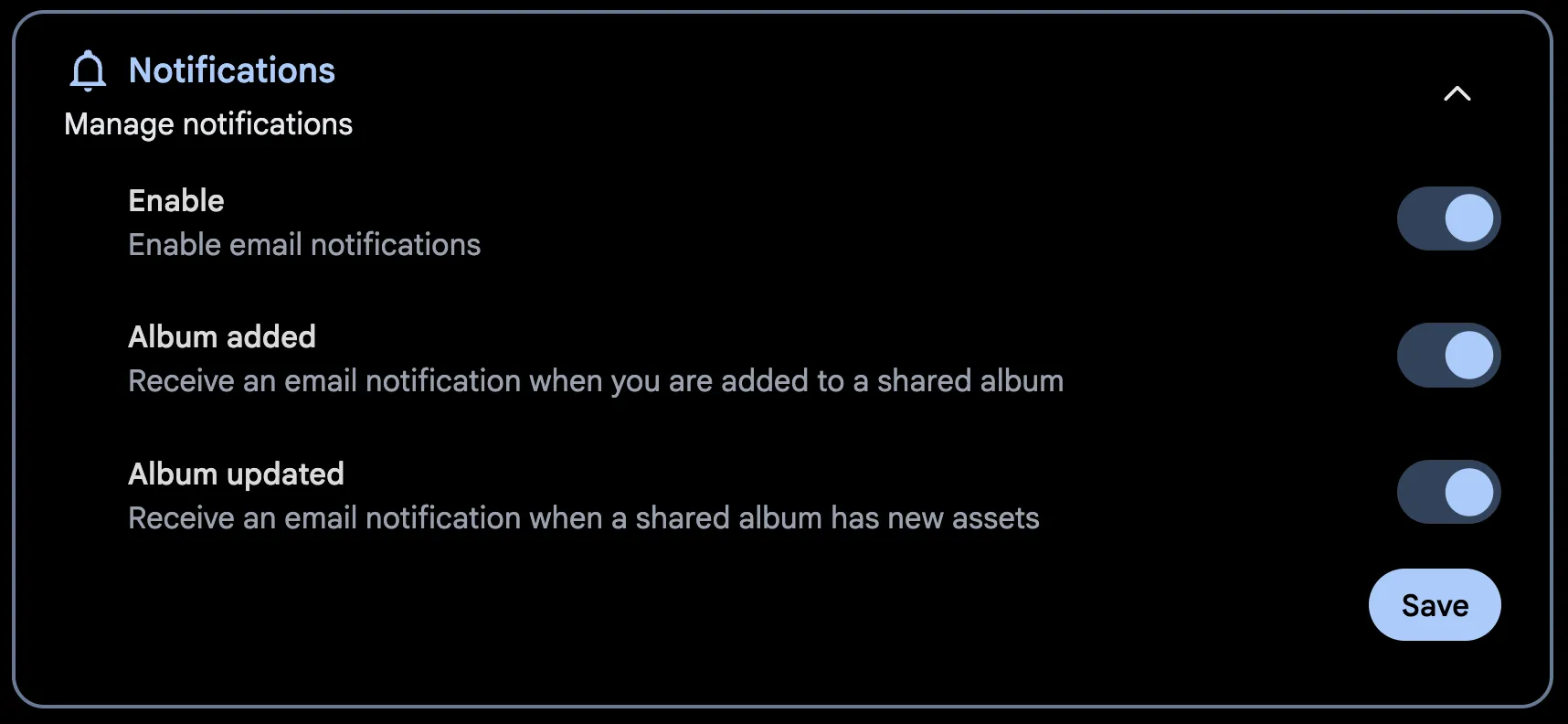
Users can manage their email notification settings from their account settings page on the web. They can choose to turn email notifications on or off for the following events:
Apprise notifications
Immich can also send album notifications through an Apprise API server, which can forward them to services like Discord, Telegram or ntfy. This is optional and works alongside email; turning it on does not change how email works.
Apprise sends notifications when a user is added to a shared album and when new assets are added to a shared album. Welcome messages for new users are only sent by email, because they can contain a password.
Server settings
The administrator sets up the Apprise API server once, under Apprise in Administration -> Settings -> Notification settings:
- URL: address of the Apprise API server, such as
http://apprise:8000orhttps://example.com/apprise. - Config ID: optional. The Apprise configuration that the username and password belong to. Not needed for an admin login.
- Username and Password: optional, for an Apprise API server that requires a login. A password can be used without a username.
- Timeout: how many seconds to wait for the Apprise API server before giving up.
Test connection and save checks that Immich can reach the server and log in; it does not send a notification. Immich does the same check when you save. If the server is slow or unavailable when a notification is sent, it is logged as failed. Email and in-app notifications are not affected.
User settings
Once Apprise is turned on, each user sees an Apprise section on their account settings page. To receive notifications, a user turns it on and enters their own Apprise URLs, separated by spaces. Notifications for that user are sent only to those URLs.
Users who leave it off, or enter no URLs, do not receive Apprise notifications. Administrators cannot see the URLs a user enters.
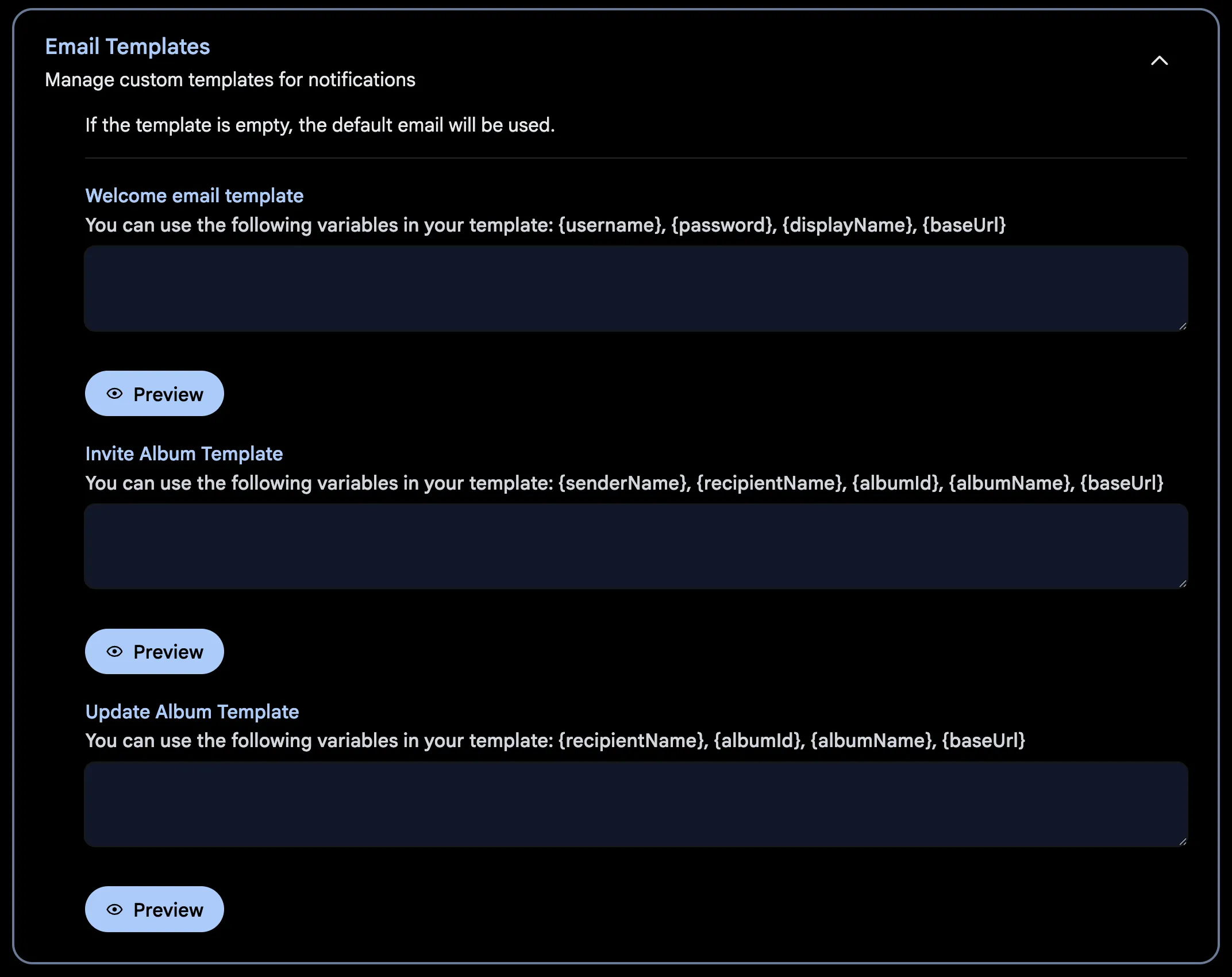
Notification templates
You can override the default notification text with custom templates in HTML format. You can use tags to show dynamic tags in your templates.